Raven CRM Employee Training & Getting Started Manual
Version 1.0 · Audience: All Raven users
A practical guide to navigating Raven, finding information, and completing common workflows.
1. Welcome to Raven
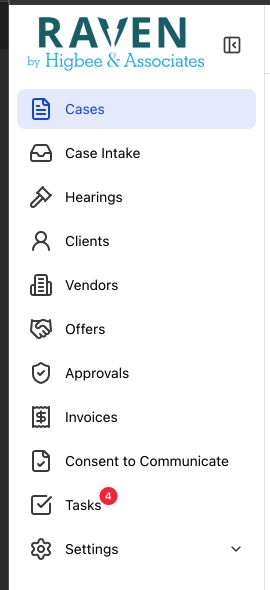
Welcome to Raven, our CRM. Raven keeps the features you already know and rely on while improving the overall experience with faster performance, easier navigation, improved searching, customizable views, and streamlined workflows.
Most users will spend the majority of their day working between four main areas:
- Cases
- Clients
- Hearings
- Tasks
Depending on your role, you may also work regularly with Offers, Client Approvals, Offer Approvals, and Recent Decisions.
What you'll learn
- Navigate Raven’s primary sections
- Search for cases, clients, hearings, and offers
- Use filters and saved views
- Understand list views and detail pages
- Edit information safely
- Move between related records
- Manage tasks and files
- Review offers and approvals when applicable
2. Raven basics
Copy buttons
Copy buttons appear throughout Raven and let you quickly copy important information.
What you'll see
Copy = quickly copy information for use elsewhere.

Pencil icons
A pencil icon indicates that information can be edited. Click the pencil before making changes. This helps prevent accidental edits.
What you'll see
✏️ Pencil = Edit. If there is no pencil, the information may not be editable from that location.

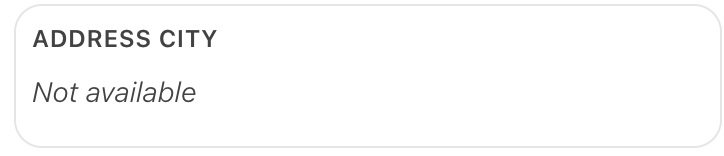
“Not Available”
Not Available simply means the information has not been entered or is not currently available.
3. Navigating list views
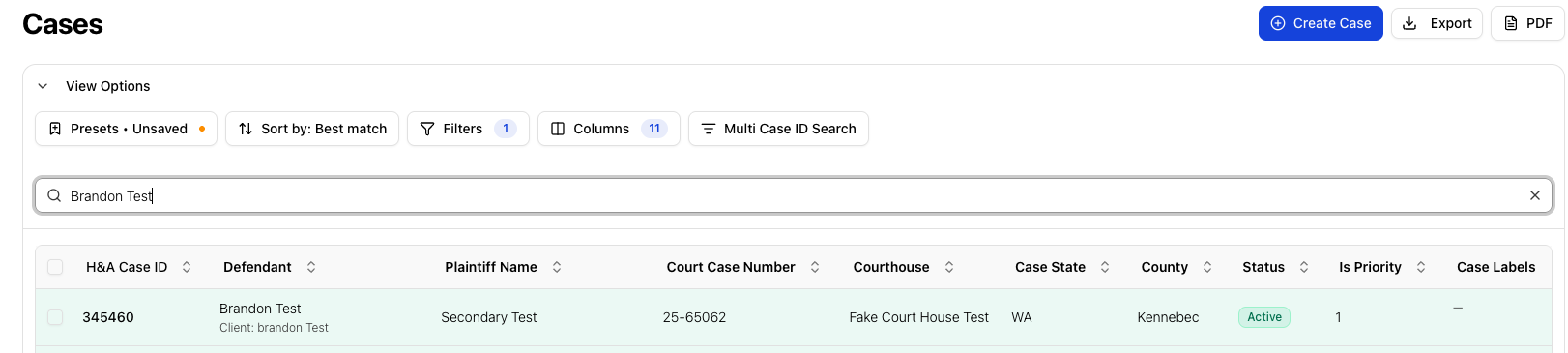
Raven uses list views throughout the CRM. List views make it easier to scan records, search, filter results, and create customized workflows.
Default views
| Area | Default view |
|---|---|
| Cases | Active cases only |
| Clients | No default filter |
| Hearings | Your assigned hearings |
| Tasks | Your assigned tasks |
| Offers | Pending offers |
| Client Approvals | Assigned clients |
| Offer Approvals | Assigned offers |
Searching
- Open the appropriate section.
- Enter the information you know into the search field.
- Review your results.
- Apply additional filters if needed.
- Open the record you need.
Saved views / presets
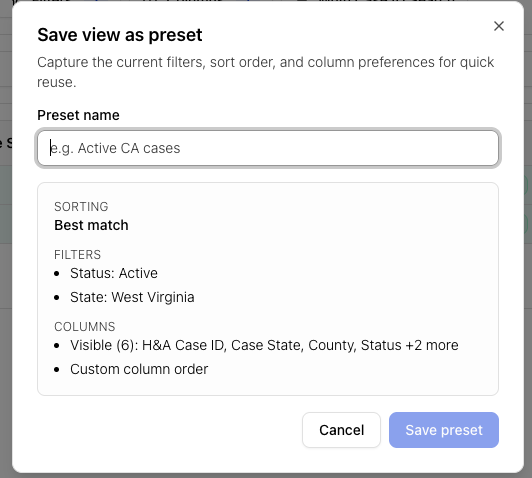
In Cases, Clients, Hearings, and Offers, you can create up to 5 customized saved views.
- Open the appropriate list.
- Enter search criteria.
- Apply regular filters.
- Save the configuration as a preset.
- Give it a clear name.
- Return to the preset whenever needed.
Training tip
If you recreate the same search every day, save it as a preset.
4. Cases
What you'll use Cases for
- Find a case
- Review case details
- View clients and parties
- Review tasks and hearings
- View related cases
- Review debts and offers
- Manage notes
- Access files
- Review assigned staff
Searching for a case
Search using:
- CID
- Client name
- Defendant name
- Plaintiff name
- Court case number
- OPC file number
Filters include State, County, Case Status, Vendor, and Case Labels. Bulk searching is also available.
Step-by-step: find a case
- Open Cases.
- Enter a CID, name, case number, or other identifying information.
- Review results.
- Add filters if necessary.
- Select the case.
Case Details
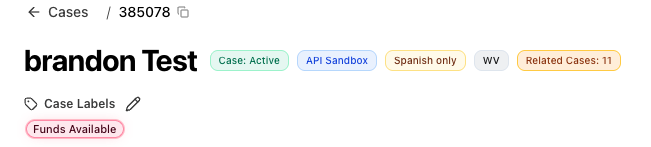
When you open a case, Raven takes you to Case Details. Information is organized into sections.
Key case information
- Case status
- Vendor
- Spanish client
- State
- Related cases
- Case labels
Client & party information
- Defendant
- Co-client
- Plaintiff
Click a client’s name to open the Client Profile.
What you'll see
Client names can act as shortcuts to the client’s profile.
Case actions
Case actions, including Task Pickup, are located in the top-right corner.

Sub Status
Sub Status appears in the Case Details area. Use the pencil icon to edit it.
Case sections
Notes
Create and edit notes, tag them, search keywords, filter tags and favorites, and switch between List View and Folder View.
Staff Assigned
View assignment dates, user emails, and use the quick Email button.
Related Cases
Click a related case to open it.
Hearings
Click a hearing to open it; use the back arrow to return to the specific case.
Offer Tracking
Review offer activity, including offers made by creditors.
Debt
Review information for the debt associated with the case.
Tasks
View and complete the case’s current tasks.
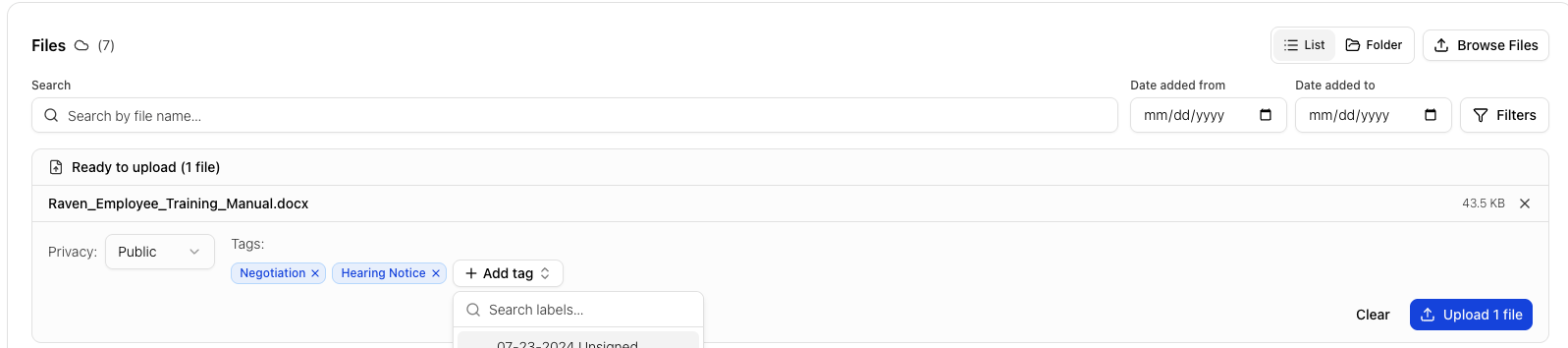
Files
Upload, tag, sort, share links to, download, and open files.
5. Clients
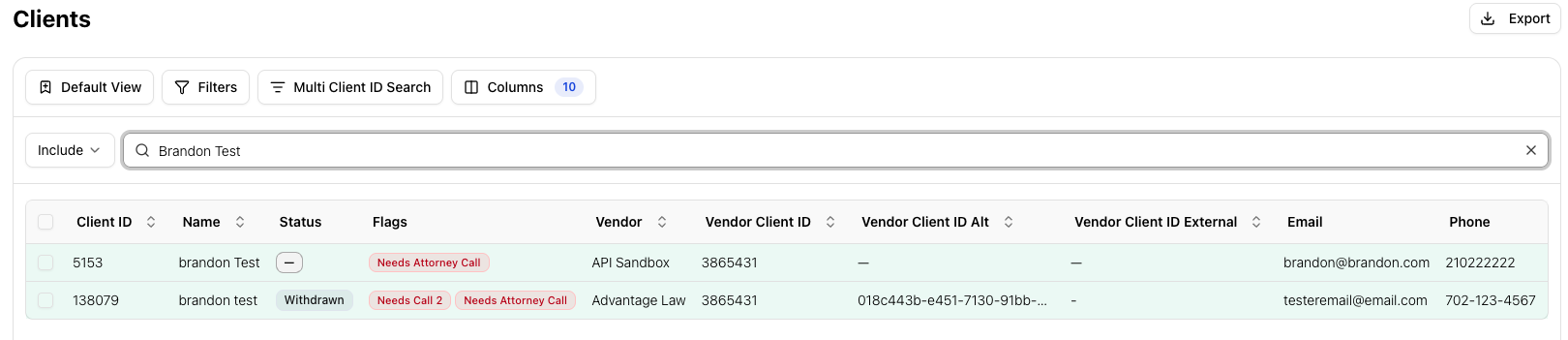
Searching for a client
Search using:
- Name
- Phone
- VCID
- Client ID
- Last four digits of SSN
- Date of birth
Filters include Client Status, State, Vendor, High Profile, Needing First Call, and Difficult Creditor. Bulk searching is also available.
Step-by-step: find a client
- Open Clients.
- Enter the information you know.
- Review results.
- Apply additional filters if needed.
- Open the client profile.
Client Profile
Key information includes:
- Client status
- Vendor
- Spanish client
- H&A Client ID
Actions appear in the top-right corner. Manual Email is available here and was previously located in the Notes area.
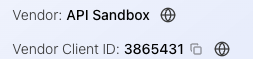
Vendor CRM link
The globe icon opens the vendor’s CRM record when available; otherwise it opens the vendor’s client search.
Client information
- Client information
- Co-client information
- Vendor details
- Hardship information
- Budget information
Contact methods
Add, update, or set a contact method as Primary.
Approvals
Unchanged from the previous CRM.
Services
Unchanged from the previous CRM.
Debts
View debt details, create a case, or open an associated case.
Offers
View offers made on the client’s debts.
Cases
View associated cases, quick information, and task access.
CA Messaging
View messages exchanged between the vendor and our team.
Notes
Use tags, filters, complaint filters, favorites, keyword search, List View, Folder View, and the First Call field.
Budget Info
Missing required budget information is shown in red.
Files
Upload, tag, sort, share links, download, and open files.
Email
Email functionality remains unchanged.
6. Hearings
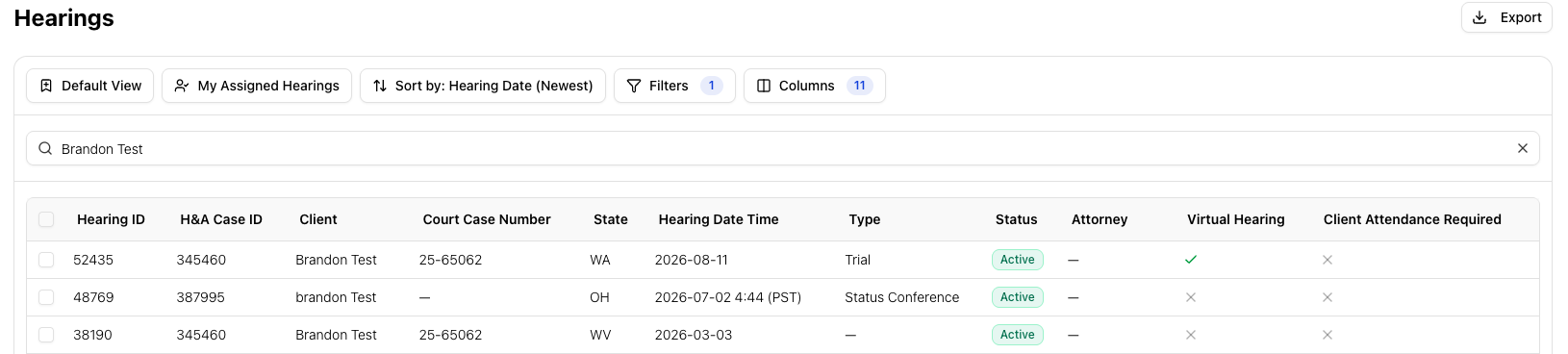
Searching for a hearing
Search using:
- Hearing ID
- Case ID
- Client name
- Court case number
Filters include Hearing Status, Hearing Type, State, Assigned Attorney, Virtual Status, and Client Attendance Required.
Step-by-step: find a hearing
- Open Hearings.
- Search using the information you have.
- Apply filters to narrow results.
- Select the hearing.
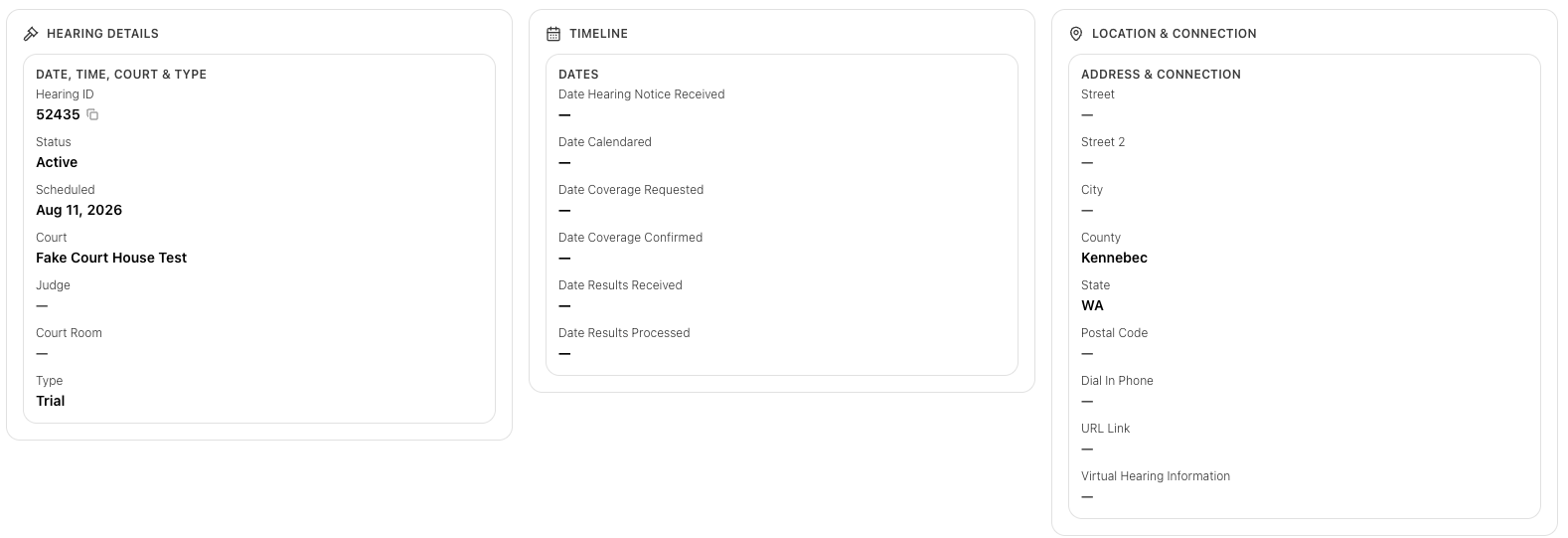
Hearing Details
The hearing displays status, client, and plaintiff. Edit and Actions appear in the top-right:
- Send files
- Additional information
- Client will attend
- Reminder email
- Results requested
- Cancel hearing
Case information
- Case number
- Court case number
- Court name
Hearing history
Raven shows who created and last updated the hearing, with dates and times.
Hearing options
- Virtual
- Network or hearing
- Client attendance required
Hearing details & timeline
- Hearing details
- Hearing timeline
- Location
- Virtual connection address
- Hearing notes
- Hearing results
Case notes
At the bottom of the hearing, you can view the case notes associated with the case.
Attorneys
Assign attorneys and select a Main Attorney. Search existing attorneys or create a new one; new attorneys are automatically associated with the selected state and county.
Available actions:
- Assign attorney
- Coverage request
- Email offer
Step-by-step: assign an attorney
- Locate the Attorney section.
- Search for the attorney.
- Select the attorney.
- Identify the Main Attorney when applicable.
7. Attorney tools: Offers & Approvals
This section is for attorneys (and other users) who handle offers and approvals.
The Approvals area includes improvements to the Attorney Portal and gives you a centralized place to review information and make decisions. There are two primary approval areas—Client Approvals and Offer Approvals—plus a Recent section for decisions already made.
If your role includes attorney workflows, become comfortable with Offers, Client Approvals, Offer Approvals, and Recent Decisions in addition to Cases, Clients, Hearings, and Tasks.
Offers
The Offers area lets you find, review, and manage offers. It is especially useful for attorneys who handle offers and approvals.
Offers supports up to 5 customized saved views. The default filter is Pending Offers.
Search by offer information, client, creditor, or vendor. Filter by Status, State, Vendor, Date Offered, Amount Offered, Litigation Status, SOL Status, and Vendor Notifications. Bulk searching is available.
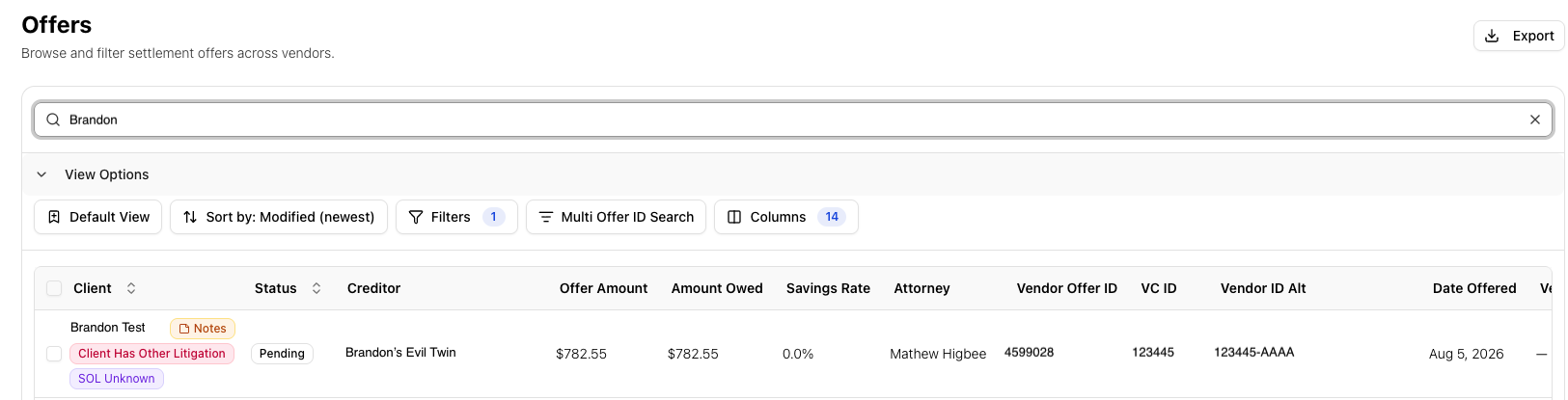
Offer list view
Without opening an offer, you can see:
- Client quick-view information
- Whether a debt is in litigation
- Whether the client has other litigation associated with different debts
- Offer status
- Creditor
- Offer amount
- Amount owed
- Savings percentage
- Assigned attorney
- Vendor Offer ID
- VCID / VCID Alt
- Date offered
- Date vendor accepted
- State
- Vendor
Opening an offer
Click an offer to review:
- Client information
- Debt and creditor information
- Offer details
- Assigned attorney
- Internal identifiers
- Notes
You can also open the associated debt, access CA Messaging, and open the offer in the Approval Queue.
Step-by-step: review an offer
- Open Offers.
- Search or filter for the offer.
- Select the offer.
- Review client, debt, creditor, and offer information.
- Review or add notes as needed.
- Use CA Messaging or open the Approval Queue when needed.
Client Approvals
Client Approvals lets you review clients waiting for an attorney approval decision.
Default view: Assigned Clients. Other views: Client Pool and All Clients.
Filter by:
- Status
- Where the client is in the workflow
- Litigation status
- SOL status
- Time in Queue
- State
Client approval list
Without opening a client, you can see:
- Client name
- Vendor
- State
- Enrolled date
- Amount enrolled
- Payment amount
- Number of months
- Fund surplus
- Primary attorney
Opening a client approval
You can review:
- Client Details
- Debt Settlement / Debt Notes
- Hardship Information
- Budget Information
- Budget Notes
- CA Messaging
Approve or reject the client directly from this screen.
Quick links
From a client approval, you can quickly open Client, Debt, or Offer information in a new tab. You can also open a quick CA Messaging window.
Bulk client decisions
Select all clients currently displayed in your view to bulk approve or bulk reject.
What you'll see
Bulk actions apply to selected clients in the current view. Review the selected records before submitting.
Offer Approvals
Offer Approvals lets you review and decide on offers waiting for attorney approval.
Default view: Assigned Offers. Other views: Offer Pool and All Offers.
Filter by:
- Status
- Where the offer is in the workflow
- Litigation status
- SOL status
- Time in Queue
- State
Quick litigation filters:
- Offer Has Lit
- Client Has Lit
- No Lit
Offer approval list
Without opening an offer, you can see:
- Client name
- Client ID
- Vendor
- State
- Offer ID
- Offer date
- Current creditor
- Amount owed
- Offer amount
- Terms
- Whether the client is in litigation
- Savings percentage
- Client savings
- Primary attorney
Opening an offer approval
You can review:
- Client Details
- Offer Details
- Notes
- Vendor Notes
- The case associated with the offer
- Other cases associated with the client
- CA Messaging
Approve or reject the offer from this screen.
Quick links
From an offer approval, you can quickly open Client, Debt, or Offer information in a new tab. You can also open the associated case or another case for the same client, and open a quick CA Messaging window.
Bulk offer decisions
Select offers currently displayed in your view to bulk approve or bulk reject.
What you'll see
Bulk approval actions can affect multiple offers at once. Review selected offers before submitting.
Recent Decisions
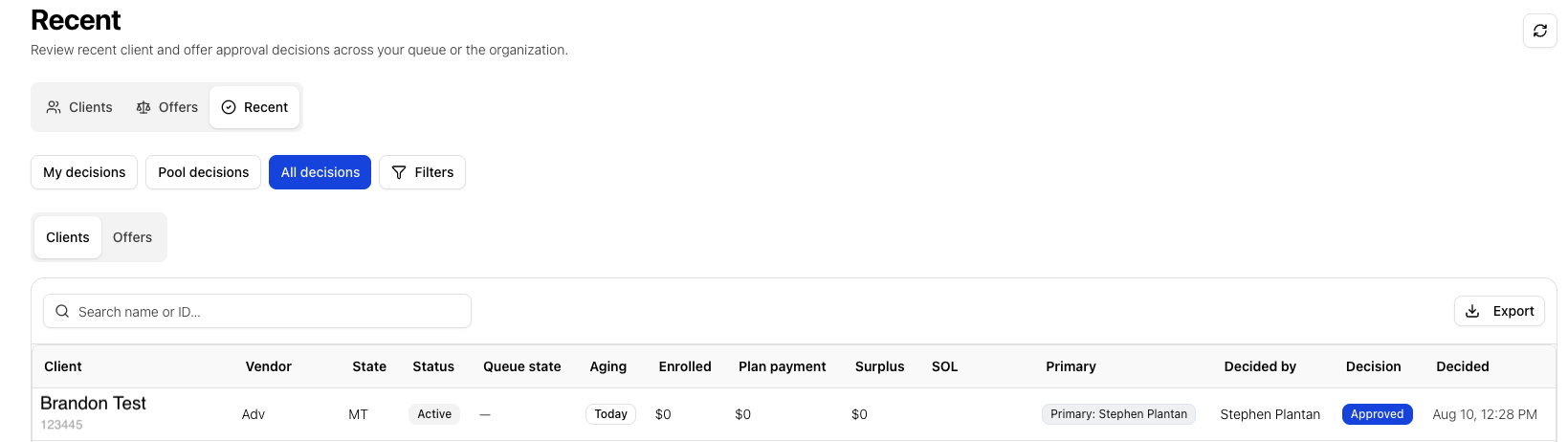
The Recent section provides a quick view of decisions already made on Clients or Offers.
You can see:
- Client name
- Client ID
- Vendor
- State
- Client status
- Supplementary client information
- Primary attorney
- Who made the decision
- What the decision was
- When it was made
Attorney quick start: where should I go?
| Go to | When you need to |
|---|---|
| Offers | Search for and review offers |
| Client Approvals | Review clients waiting for an attorney decision |
| Offer Approvals | Review offers waiting for an attorney decision |
| Recent | Review decisions that have already been made |
| Cases | Work a specific case, tasks, files, or related records |
| Hearings | Manage hearing details, actions, or assigned attorneys |
| Tasks | See and complete your assigned tasks |
Training tip
When moving between a case and its hearings (or other related records), use the back arrow to return to the specific record you were viewing. Use new tabs from Quick Links when you want to review Client, Debt, Offer, or Case information without losing your place in Approvals.
8. Tasks
Tasks are one of the primary areas used for daily work. The default Tasks view displays your assigned tasks. Tasks can also be accessed from individual cases.
Step-by-step: work a task
- Open Tasks.
- Review assigned tasks.
- Open the task you need to work.
- Complete the required work.
- Mark the task complete.
Training tip
Tasks can also be completed directly from a case’s Tasks section.
9. Quick navigation tips
Use search before scrolling
If you know a name, ID, case number, or other identifier, search first.
Use filters to narrow results
Start broad, then use filters to narrow results.
Save repeated searches
Save searches you perform regularly.
Look for the pencil
✏️ indicates editable information.
Use Copy buttons
Use Copy when you need to reuse information elsewhere.
Click names
Client names can take you directly to the client profile.
Use related records
Cases, clients, debts, hearings, offers, and other records are connected.
Use new tabs when available
Open client, debt, or offer information in a new tab when you need to compare information without losing your workflow.
10. Raven quick reference
| I need to… | Go to… |
|---|---|
| Find a case | Cases |
| Find a client | Clients |
| Find a hearing | Hearings |
| Find my tasks | Tasks |
| Find an offer | Offers |
| Review assigned clients for approval | Client Approvals |
| Review assigned offers for approval | Offer Approvals |
| Review recent approval decisions | Recent |
| Find a client’s associated case | Client → Cases |
| Find a client’s debts | Client → Debts |
| Find offers on a client’s debts | Client → Offers |
| Review case hearings | Case → Hearings |
| Review case files | Case → Files |
| Review client files | Client → Files |
| Review case notes | Case → Notes |
| Review client notes | Client → Notes |
Your first steps in Raven
1. Find a case
Practice searching for a case using a client name or case number.
2. Find a client
Search for a client and explore their profile.
3. Open related information
From a case, try opening the client, a hearing, and a related case.
4. Practice using filters
Open a list view and apply a filter.
5. Create a saved view
Save a search you expect to use regularly.
6. Identify editing controls
Look for the pencil icon and identify editable information.
7. Explore files and notes
Review Notes and Files on a case or client.
8. Check your tasks
Open Tasks and review assigned work.
9. Attorneys: explore Offers & Approvals
Practice finding an offer and navigating the approval workflow.
Final reminder
Raven is designed to make your daily work easier by putting the information and actions you need in one place.
Search → Filter → Open → Review → Take Action
Once you’re comfortable with Cases, Clients, Hearings, and Tasks, you’ll have the foundation you need to navigate Raven confidently. Attorneys should also become comfortable with Offers, Client Approvals, Offer Approvals, and Recent Decisions.